Barcode Scanner App for Business: Setup Guide
Our Top Picks at a Glance
Skip the reading — grab the pick that matches your shop.

Right-sized for most small shops
Eyoyo Mini Wearable 2D 1D QR Bluetooth Finger Ring Barcode Scanner | 3-in-1 USB Wired&Wireless, Portable Image Bar Code Reader PDF417 Data Matrix, Screen Scan Compatible with iPad, Phone, PC

Simple, reliable, easy to set up
Zebra Technologies Zebra ZD220 / ZD220d Direct Thermal USB Barcode Laber Printer - Black
Higher-end pick when volume matters
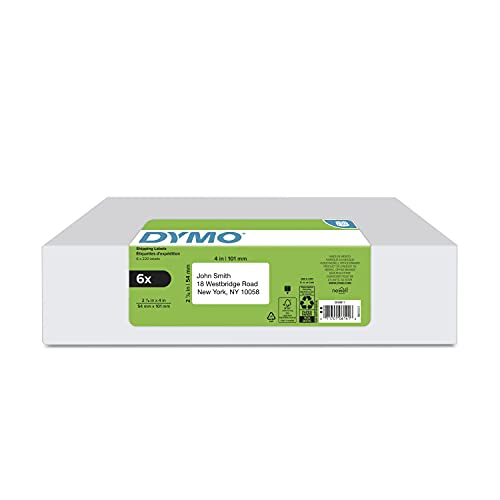
DYMO Authentic LW Standard Shipping Labels for LabelWriter Label Printers, White, 2-1/8" x 4", 6 Rolls of 220 (1320 Total)
As an Amazon Associate, ExpressBizTools earns from qualifying purchases at no extra cost to you.
Barcode Scanner App for Business: How to Set One Up This Week
Most small businesses do not need a warehouse management system. They need one reliable way to point something at a barcode and have the right product appear on screen. That is what a barcode scanner app does, and on a modern phone it is genuinely good enough to run a shop, a stockroom, or a market stall.
This guide covers what a business barcode app actually does, when a phone beats dedicated hardware, how to set up scanning inside ExpressBizTools in about twenty minutes, and how to fix the handful of things that usually go wrong.
What a barcode scanner app does that a camera does not
A generic QR reader opens a link. A business barcode app matches a code to a record you own. That difference is the whole point.
- It reads 1D retail barcodes (UPC, EAN, Code 128) as well as 2D codes (QR, Data Matrix).
- It looks the scanned number up in your own product list rather than a public database.
- It performs an action on the match: add to an invoice, adjust stock, open the product, or log a count.
- It handles the codes you print yourself for products that never had a manufacturer barcode.
If an app only decodes and displays a number, it is a reader, not a business tool.
Phone camera vs a dedicated scanner
Both work. They fail in different places.
A phone camera is right when you scan in bursts rather than continuously, you move around the shop or stockroom, you want zero hardware spend, or you need scanning at a pop-up, market, or customer site.
A dedicated scanner is right when someone stands at a fixed counter scanning all day, you scan more than roughly 200 items in a session, your lighting is poor, or barcodes are small, curved, glossy, or shrink-wrapped.
A practical middle path for a small shop: a $30 wired USB scanner at the counter for checkout, and phones for stock counts and receiving. A USB scanner in HID keyboard mode needs no drivers — it types the barcode into whatever field has focus, which means it works with ExpressBizTools immediately.
Setting up barcode scanning in ExpressBizTools
- Open the scanner. Go to the app and open the barcode scanner. On the first use your browser asks for camera permission — allow it, or scanning silently does nothing.
- Scan an existing product to confirm decoding works. Hold the phone 10–20 cm away and let autofocus settle rather than jabbing at the code.
- Attach barcodes to products. For each product, store its barcode in the product record. Manufacturer barcode present? Scan it. No barcode? Assign your own SKU and print a label.
- Use it at the counter. Scanning during invoice creation adds the matched product and its price to the line items, so checkout becomes scan-scan-total instead of typing.
- Use it for stock. Receiving a delivery and counting shelves both become scan-and-adjust, which is where the real time saving lives.
Everything runs in the browser, so there is nothing to install on each device. Any phone, tablet, or laptop with a camera can be a scanning station.
Printing your own barcodes for unbranded stock
Handmade goods, bulk-broken items, and repackaged products arrive with no code. Give them one.
- Assign a short, consistent SKU pattern — for example `CAND-LAV-200` for a 200g lavender candle. Human-readable beats random.
- Print Code 128 for internal SKUs; it handles letters and numbers cleanly.
- Use a direct-thermal label printer rather than an inkjet. Thermal labels do not smudge, need no ink, and print in about a second.
- Standard 1.5in x 1in labels suit most retail items; 2in x 1in gives room for a name and price alongside the code.
- Put the label where it will be scanned, not where it looks tidiest. Bottom of the box beats under a fold.
Full detail is in our barcode labeling system guide.
The five problems people actually hit
The camera opens but nothing decodes. Almost always focus or glare. Move slightly further away, tilt to kill reflections, and clean the lens — a smeared lens is the number one cause.
It scans, but says the product is unknown. The code is not attached to any product yet. Add it to the product record once, and every future scan works.
Scanning is slow at the counter. Phones are fine for stock work, but a wired scanner is faster for continuous checkout. This is a hardware problem, not a software one.
Barcodes on shrink-wrapped or curved items fail. Flatten the wrap or scan the shelf label instead. For bottles and jars, print your own flat label.
Two products share one barcode. Common with multipacks and variants. Give one of them an internal SKU and relabel it — duplicate codes corrupt stock counts permanently.
Habits that make scanning pay off
Scanning only saves time if the data behind it is trustworthy. Three habits do most of the work.
- Scan on receipt, not later. Stock counted at the door is accurate; stock counted from memory on Friday is fiction.
- Count one category a week instead of a whole-shop count twice a year. Ten minutes a week beats a lost Sunday, and errors surface while you can still explain them.
- Never adjust a count without a reason. Damage, theft, sampling, and miscount are different problems, and only the reason tells you which one you have.
Pair this with the physical inventory count guide when you do your first full count.
What it costs
A phone-based setup costs nothing beyond what you own. Adding a counter scanner and a label printer typically lands between $60 and $200 all-in for a small shop, and both are one-time purchases with no subscription attached. Compare that to inventory platforms charging $50–$100 a month and the payback period is measured in weeks.
If you want hardware suggestions that pair with this workflow, the barcode scanners gear page and the label printers guide list current options.
Start here
Open the scanner, scan five products, attach their codes, then ring one of them up. Twenty minutes from now you will know whether this replaces your current process — and it costs nothing to find out.
Related: inventory management tips · reorder point calculator · inventory turnover calculator
Frequently asked questions
Can I use my phone as a barcode scanner for business?
Yes. A modern phone camera reads standard UPC, EAN and Code 128 barcodes reliably for stock counts, receiving and low-volume checkout. Add a wired USB scanner only if someone scans continuously at a counter all day.
Does barcode scanning in ExpressBizTools cost anything?
No. Scanning runs in the browser on any phone, tablet or laptop with a camera, with no signup and no monthly fee.
What if my products have no barcode?
Assign your own SKU, print a Code 128 label on a direct-thermal label printer, and attach it to the product record. Human-readable SKU patterns work better than random numbers.
Why does my scanner read the code but say the product is unknown?
The barcode is not attached to a product yet. Store the code on the product record once and every future scan matches it.
Ready to try ExpressBizTools?
Free to use in your browser. No account or card needed.
Get Started Free